


Video to MP3 - Video to Audio
4.89.60K Reviews
App Specs
- Version
- Varies with Device
- Updated On
- License
- Free
- Downloads
- 50,000,000+
- Developer
- InShot Inc.
- Categories
- Video Players & Editors
- Platform
- Android, iOS
Screenshots
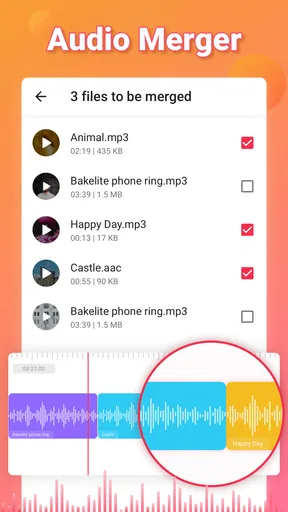
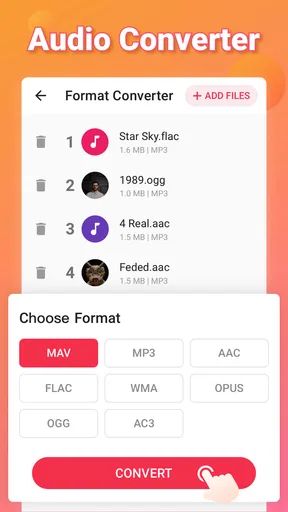
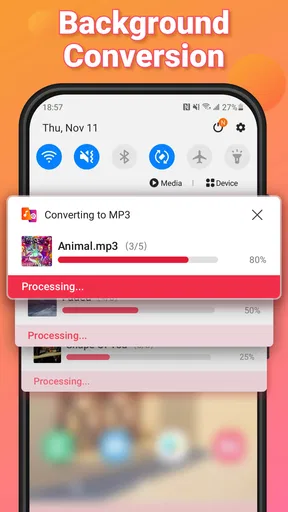
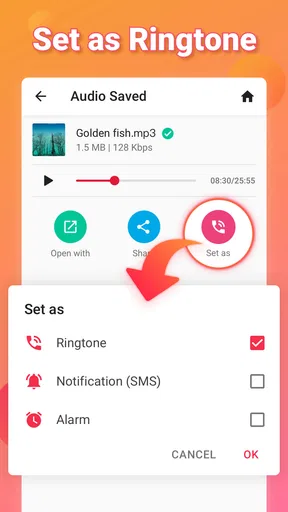
 Analysis by AppCompare
When I want the sound from a video without keeping the video itself, I care less about elaborate editing tools and more about a simple conversion I can finish and use. That is the specific job Video to MP3 - Video to Audio is built around. It turns a video file into an audio file, with trimming as a useful companion task. I see it as a focused utility in the video-player and editing space, rather than a replacement for a full audio workstation.
That focus matters in ordinary situations: saving a speech clip for listening while doing something else, isolating a short musical passage for a personal project, or making an audio-only copy of a recording to keep on hand. The app is free to install, made by InShot Inc., and has a 4.8 average from around 715,000 ratings, with over 50 million installs. It is rated for Everyone, though optional in-app purchases are available. Those numbers suggest a widely used tool, but the main question for me is simpler: does its central task fit the way you actually handle media?
Conversion is the point, not a full editing suite
The appeal is that video-to-audio conversion does not require me to open a broader editor and work through a timeline when all I need is the sound. I can choose a video, select an output format, and convert it. That direct path is most valuable for one-off jobs, especially when the visual part of a clip is irrelevant after I have identified the section I want.
There is a practical distinction between extracting audio and finding a song. This app works with a video file you already have; it is not a music search service, and converting a clip does not identify a track or make it legally reusable. If I am trying to discover a song, a recognition or streaming app is a better first stop. If I have a recording and need its sound separated from the picture, conversion is the right kind of tool.
I would also treat the result as a new audio copy, not assume it will improve the source. If the original video has quiet dialogue, background noise, or compressed sound, converting it does not magically repair those problems. My useful rule is to listen to the source first and decide whether the segment is worth keeping before spending time on export choices.
A sensible workflow for clips you already have
In practice, I would start by locating the video in my device’s media collection and checking that it is the right file. Then I would choose the audio format that suits the next step and use trimming when I only need part of the recording. For a spoken note, that might mean cutting away the silence at the beginning and the unrelated material at the end. For a musical excerpt, it means choosing a clean start and finish rather than keeping several seconds of handling noise.
One non-obvious tip is to make the trim decision before converting, not after, when the goal is a short clip. It keeps the result focused and makes it easier to recognize later among other files. I would leave a little breathing room around speech rather than cutting right against the first syllable or final word; a technically neat cut can sound abrupt when played back. If I need a precise edit with fades, volume automation, or detailed waveform control, I would move the audio into a dedicated editor instead.
Worth Reading Before You Choose

Baby Panda World Brings Quick Play to Modern Phones, but Its Game Library Feels Busy

ESPN’s Live Game View Makes Following Close Games Easier

QuizzLand Review: A Good Fit for Short Trivia Breaks, Not Every Player

Basketball Stars: Multiplayer Is Fast, but Can It Recover When Matches Go Wrong?

WEBTOON Turns Phone Updates Into a Better Reading Routine

Link to Windows Runs on Shared Habits, Not Social Feeds
Another useful habit is to keep the original video until I have checked the exported audio. That gives me a fallback if I chose the wrong segment or format, and it avoids treating the conversion as a destructive edit. After export, I would play the file from beginning to end, especially if it is meant for a ringtone or a presentation. A quick check catches clipped words, an awkward ending, or a segment that starts later than intended.
Where it earns a place in everyday use
Imagine I record a short talk at a community event and later want to listen to the speech while walking, without opening a video each time. An audio copy is easier to treat like a listening file, and trimming can remove the moment before the speaker begins. The same workflow can help with a recipe demonstration when I only need to replay the spoken instructions, or with a personal video whose background music I want to reference while working on a private edit.
That last example needs a boundary: extracting a soundtrack for personal listening is not the same as receiving permission to publish it, reuse it in a public video, or distribute it. I would check the rights before using anyone else’s music or speech outside my own private use. The converter handles a file; it does not settle copyright or licensing questions.
This is also a handy option when someone sends me a video containing a short voice message and I want an audio-only version to keep with other recordings. It is less suitable if the clip is stored only in an online service and I do not have an accessible video file. In that case, I would first use the service’s own available options or obtain a local copy through a legitimate route rather than expect a converter to fetch media from elsewhere.
Using it well—and knowing when to choose another tool
I’d use this section to set a practical boundary: conversion is most helpful when I already have a video and know which sound I want to keep. I’d also check that the clip is mine to use and listen to the exported file before relying on it, since a quick conversion cannot fix weak source audio. If the job calls for repair, layered editing, or music discovery, a different tool will save time.
Format choices and realistic expectations
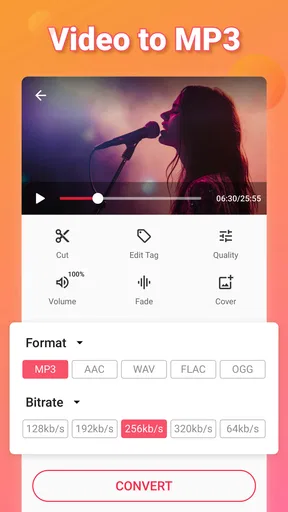
The app’s store summary describes video trimming and video-to-audio conversion, and its short description emphasizes MP3. The published article also describes MP3 and AAC as possible output choices. In either case, I would choose based on where the file is going: MP3 is a familiar format for general playback, while another compatible format can be useful if a particular device or project calls for it. A larger or less compressed file is not automatically better if the source was already limited by the recording.
Before converting, I would consider how the audio will be used. For casual listening, a straightforward compressed file is usually convenient. For further editing, I would preserve the original video and avoid repeatedly converting the same material, since each export can add another step where quality or compatibility becomes a concern. The sensible goal is a file that works for the intended task, not the biggest file or the most technical-sounding setting.
There is a small but important workflow trade-off here: a dedicated converter is easier to approach than a full editor, but it offers less room for careful sound work. It is a good fit when I want separation and a simple trim. If I need to remove hum, balance several voices, add fades, or line audio up with a new picture, I would use a more capable editing app. Likewise, a file manager may be enough if I only need to rename or move an audio file after conversion; there is no benefit in opening a converter for a task it does not need to do.
What to expect from the experience
The published review describes a straightforward interface and a conversion flow centered on selecting a video, choosing a format, and starting the process. That simplicity is an advantage when I am handling a single clip, but it also means I should not approach it expecting the layers and controls of a desktop editor. I would keep the job modest: identify the source, decide what portion matters, export, and listen back.
One practical question is whether this suits a complete beginner. For basic extraction, the described sequence is easy to understand because the task itself is narrow. The decisions that can trip someone up are less about operating the app and more about choosing the right source, trimming carefully, and knowing where the finished file will be useful. Taking a moment to check the clip before export is more helpful than rushing through format choices.
Another question is whether it replaces a music player or a general-purpose editor. I would say no to both. Its role is to create an audio file from video, after which a player can handle listening and an editor can handle more involved changes. Keeping those jobs separate makes the app easier to judge: it is valuable when conversion is the missing step, not when I need every media tool in one place.
For frequent creators, the trade-off is about control. If I regularly prepare voiceovers, polish recordings, or synchronize sound with footage, I would rather use a full editor that keeps those tasks together. For someone who only occasionally needs an audio copy, that broader toolset can be unnecessary overhead. This app makes more sense when the conversion itself is the job, not merely the first step in a demanding production workflow.
Who is likely to get the most from it?
I would recommend it to people who already have video files and want a quick route to their audio: casual listeners, students reviewing recorded talks, or anyone making a short personal sound clip. Its free entry point makes it easy to try for that limited purpose, while optional purchases mean it is worth checking the in-app offer details before paying for anything. The app was released on February 11, 2018, and has accumulated around 9,400 written reviews, alongside its much larger rating count.
I would skip it if the real need is to download or identify music, repair poor recordings, or produce polished audio with layered edits. Those are different problems, and a converter should not be expected to solve them simply because the source happens to be a video. I would also avoid converting a clip merely because I can: if I will never listen to or use the audio separately, keeping the original video may be simpler.
Final thoughts on a focused tool
Ever found yourself listening to a video clip on repeat just for the soundtrack? Yeah, been there, done that. Enter Video to MP3 - Video to Audio, the app that’s here to save your day and your playlist. Let's dive into what makes this nifty app a must-have for anyone who’s ever fallen in love with the background score of a video but couldn’t find it anywhere else.
First things first, the installation process is a breeze. Available for both Android and iOS, it’s just a quick download and you're set. Open the app, and you’re greeted with a clean, user-friendly interface. No clutter, just straightforward options that even the least tech-savvy among us can navigate with ease.
Features That Make It Shine
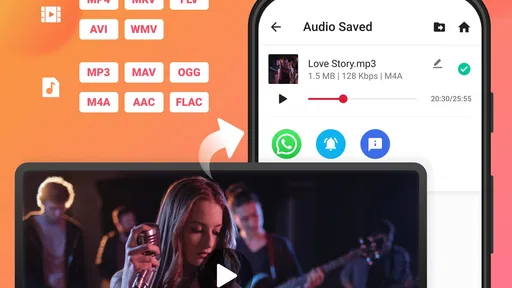
Now, let’s get to the good stuff. What exactly can Video to MP3 - Video to Audio do? Well, as the name suggests, it converts video files into audio files. But it’s not just that simple. The app supports a variety of video formats, so whether it's an MP4 or an AVI, you're covered. It also offers different audio formats for conversion, like MP3 and AAC, which is perfect for those of us with specific audio needs.
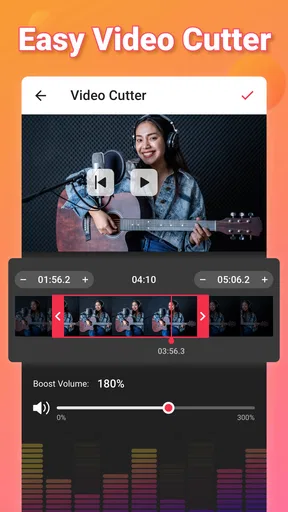
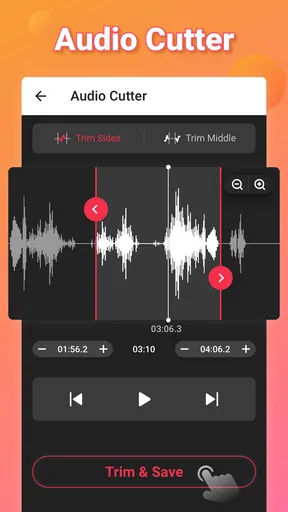
The conversion process is quick and painless. Just select your video, choose your desired audio format, and hit convert. In no time, you’ll have a high-quality audio file ready to go. And let's not forget the ability to trim and edit audio files directly within the app. This feature is a game-changer for anyone wanting to create custom ringtones or cut out that pesky intro.
Why You’ll Love It
One of the things I love most about this app is its simplicity. There’s no unnecessary bells and whistles, just a straightforward tool that does exactly what it claims. The design is intuitive, making it accessible for everyone, regardless of their tech expertise. Plus, it doesn’t bombard you with ads every other second, which is a huge win in my book.
Moreover, the app doesn’t compromise on quality. The audio files maintain their integrity, and you won’t find yourself cringing at any loss in sound quality. It’s perfect for creating playlists of your favorite video soundtracks, or even just extracting audio for personal projects.
If you’re someone who’s constantly on the hunt for audio tracks from videos, or simply wants an easy-to-use tool for converting video to audio, it’s worth a look. It’s reliable, efficient, and does exactly what it promises without any fuss. In a world where apps often overpromise and underdeliver, this one is a breath of fresh air.
Go ahead, give it a try. You might just find yourself wondering how you ever managed without it. Whether you’re a music lover, a content creator, or just someone who likes to keep things simple, this app is sure to hit the right notes.
Pros
- Easy conversion process from video to audio.
- Supports multiple video formats.
- Fast conversion speed.
- User-friendly interface.
- Minimal ads for a free app.
Cons
- Lacks advanced editing features.
- Limited audio output formats.
- Occasional crashes reported.
- No batch processing option.
- Requires internet for some features.
FAQs for Video to MP3 - Video to Audio
What is Video to MP3 - Video to Audio and how does it work?
Video to MP3 - Video to Audio is a versatile application that allows users to convert video files into audio formats such as MP3. The app supports a variety of video formats and provides an easy-to-use interface for selecting files and converting them with just a few taps. It’s ideal for extracting audio from music videos or other media content.
Is Video to MP3 - Video to Audio free to use?
Yes, Video to MP3 - Video to Audio offers a free version with essential features. However, it may include ads or in-app purchases for advanced features or an ad-free experience. It’s recommended to check the app store listing for detailed pricing information before downloading.
What video formats are supported by Video to MP3 - Video to Audio?
The app supports a wide range of video formats, including MP4, AVI, MKV, and more. This ensures compatibility with most video files you might have. Always check the latest app updates or developer notes for the most current list of supported formats.
How is the audio quality after conversion using Video to MP3 - Video to Audio?
Video to MP3 - Video to Audio prioritizes maintaining high audio quality during conversion. Users can often choose the bitrate and format to balance quality and file size. However, the final output quality may also depend on the original video file's audio quality.
Can I use Video to MP3 - Video to Audio on both Android and iOS devices?
Yes, Video to MP3 - Video to Audio is available for both Android and iOS platforms. You can download it from the Google Play Store or Apple App Store, ensuring compatibility with your specific device. Always check the app requirements to ensure it will run smoothly on your device.


